Digital Applicator Cards
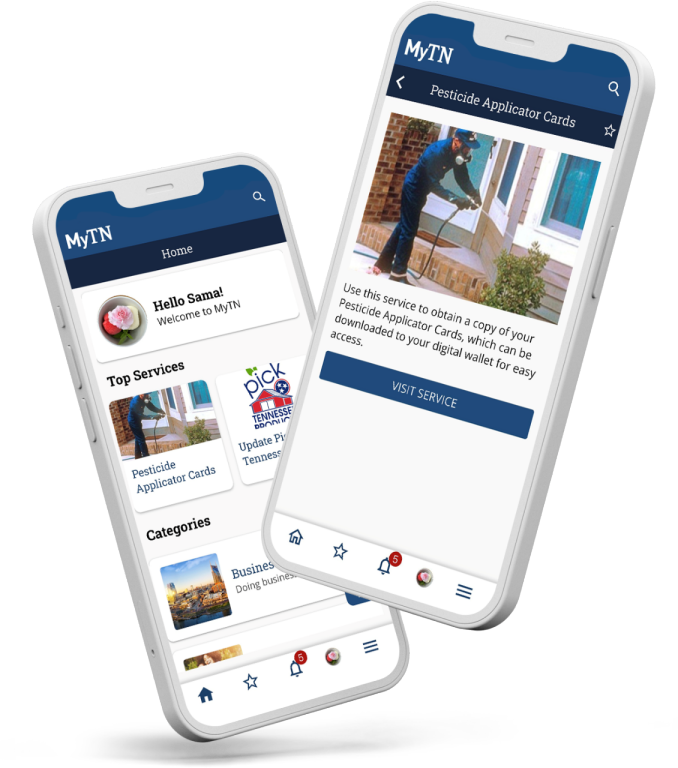
Step 1: Download or Update the MyTN App
Install the MyTN app from the Apple App Store or Google Play. Make sure you are using MyTN version 3.6.0 or later.


Step 2: Create a MyTN Account or Sign In
Create a MyTN profile or sign in using your existing account. You will be asked to verify your email address.
Step 3: ID Verification
To protect your information, you will be asked to answer a few identity verification questions.
Step 4: Find Your Applicator Record
From the MyTN Home screen, select Update Pesticide Applicator Cards, choose Visit Service, and enter your Certification ID.
Step 5: Review Your Applicator Card
Review each page of your Applicator Card.
Step 6: Add Applicator Card To Your Digital Wallet
Securely add your applicator card to your Apple Wallet or Google Wallet for quick access anytime.
Need Detailed Instructions?
View the complete step-by-step guide, including screenshots and troubleshooting tips.
Important: For the easiest record match, use the same email address and phone number associated with your Pesticide record.
For assistance:
For questions regarding MyTN and account setup, please email us at MyTN.Support@tn.gov
Commercial Applicators: Pesticides.CEU@tn.gov | Private Applicators: Pesticides.PrivateApplicators@tn.gov