How to Use Our Online Burn Permit System
We've made it simple to get your burn permit online. This guide will walk you through the process step-by-step.
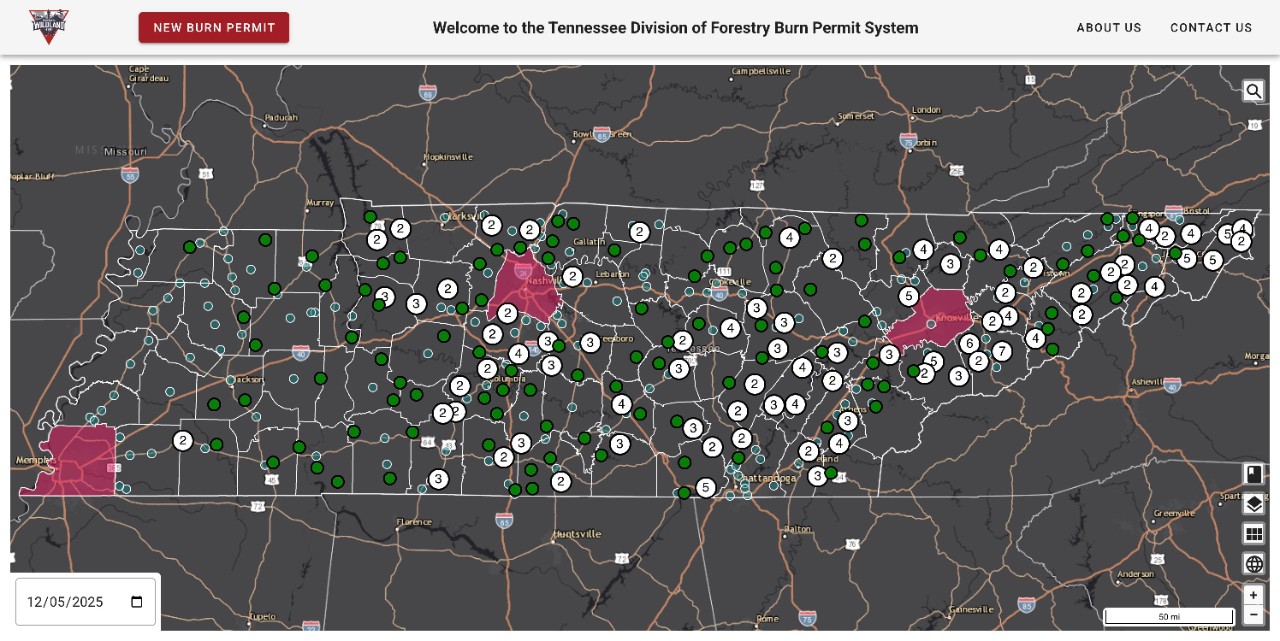
View Burn Permit Information
On the homepage, you can:
- See permits that have already been issued, by clicking on the green dots across the map
- Check for any county-wide burning restrictions
- View a list of municipalities where our permits are not required
To begin your application, click the red “New Burn Permit” button.
Quick Steps for Returning Customers
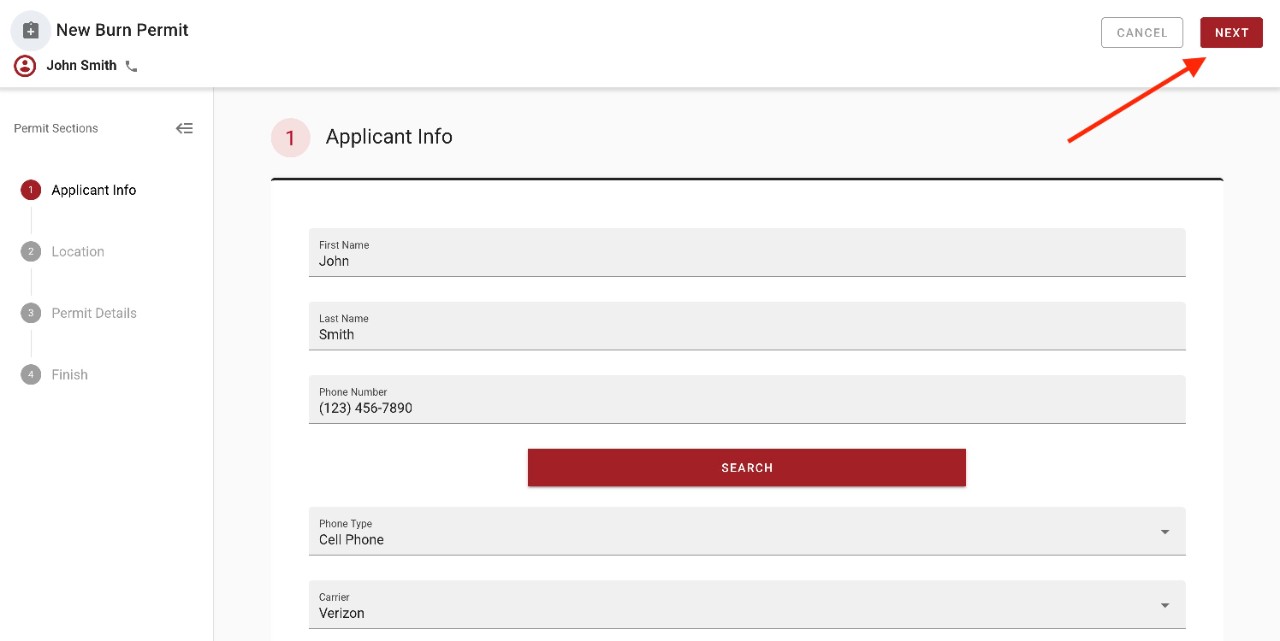
- Step 1: Enter first and last name, then phone. Select “Search” button,then select red “Next” button
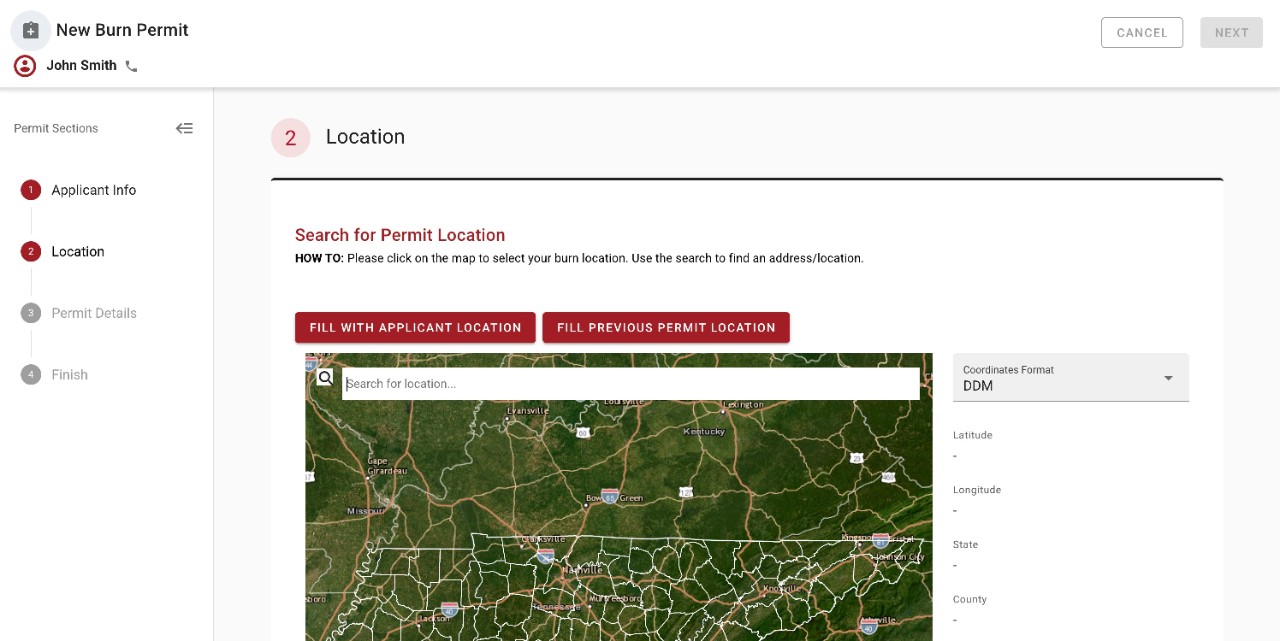
- Step 2: Select appropriate quick fill button “Fill with Applicant Location” or “Fill Previous Permit Location”, then select red “Next” button
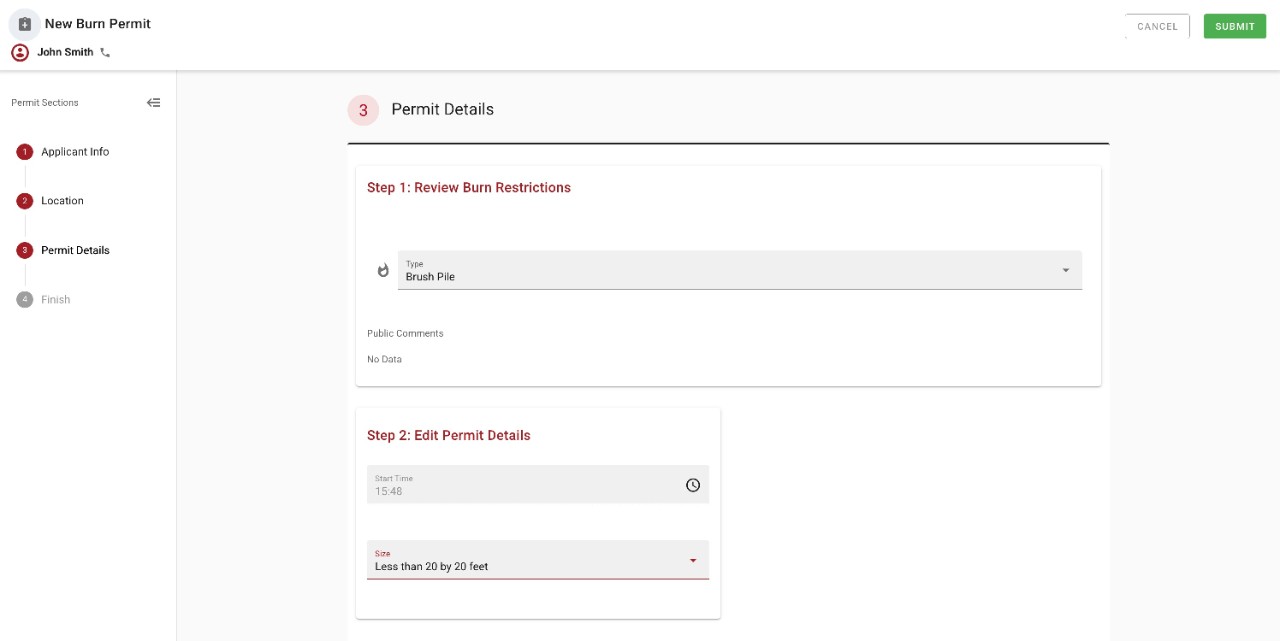
- Step 3: Select permit details, then select green “Submit” button
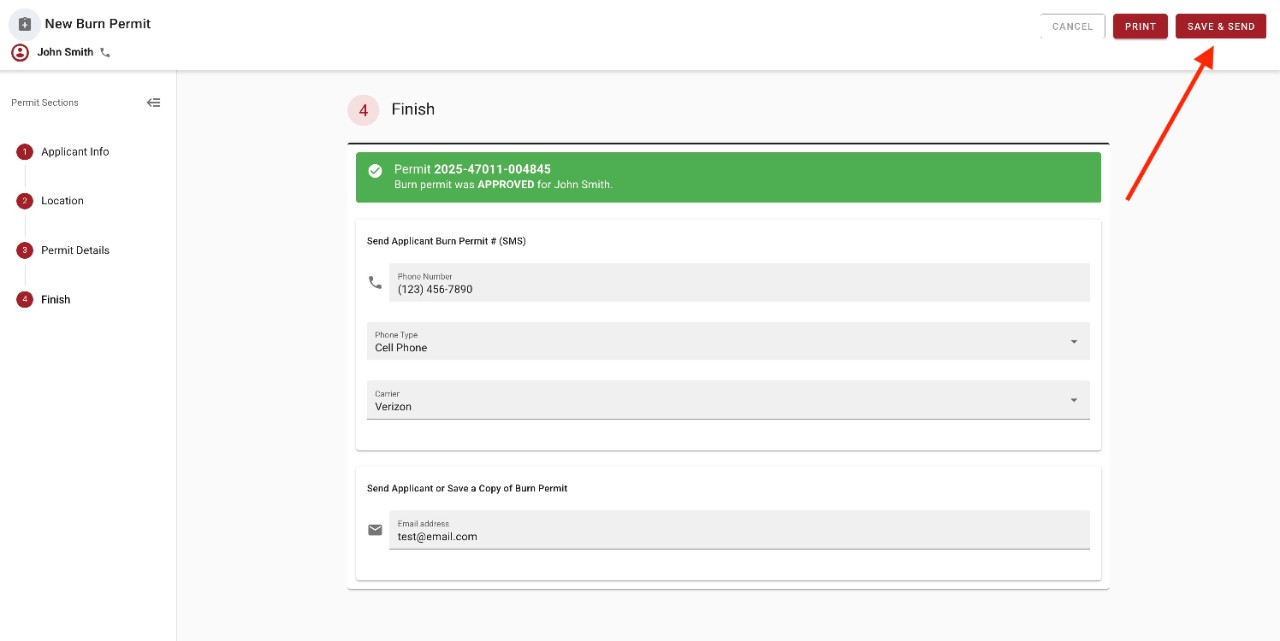
- Step 4: Review permit details and select “Save & Send”
Step 1: Applicant Info
- In this first step, we just need some basic information. Enter your first name, last name, and phone number. If you've used our system before, it will automatically fill in your details to save you time.
- Once you've filled out the fields, the "Next" button in the top right corner will turn red. Click it to move on.
Step 2: Location
Next, let us know where the burn will take place.
- If you are burning at your home address: Is the burn location the same as the address you provided in Step 1? Then click the “Fill with Applicant Location” button. Click the red "Next" button to proceed.
- If you are burning at a different location: You can either type the address into the search bar or enter the address details manually in the panel on the right side of the screen.
Step 3: Permit Details
Now provide the details about your prescribed burn.
- Click the dropdown menu to select the type of burn.
- For leaf or brush piles, choose "Piles."
- For prescribed fires related to agriculture, land management, or wildlife, choose the appropriate option (Agriculture, Mitigation, Silviculture, Wildlife).
- Enter any other required details, like the total acreage you plan to burn. If you have additional information for prescribed fires, you can add it in the comments section before submitting.
Step 4: Finish
This final step is just to confirm and send your permit.
- Click the “Save and Send” button. The system automatically uses the phone number and email from Step 1, but you can enter different contact information here if you prefer.
- Your permit is now complete! You can select the “Print” option to immediately download a PDF copy for your records.
Customer Support
Email us at BurnSafe.TN@tn.gov.